Home
Welcome to Apipos.com!

Datorios Launches Enhanced Apache Flink Observability for Advanced Agentic AI
Datorios, a leader in data observability and quality solutions for real-time operations, has introduced new observability features for Apache Flink, the widely-used open-source stream processing system. Revealed at Ververica’s Flink Forward 2024 in Berlin, Datorios’ latest offerings provide businesses with the tools needed to monitor Flink-driven AI applications effectively, supporting consistent, accurate business automation in real time. Datorios centralizes insights on system behavior, including data flows, code execution, and infrastructure, enabling organizations to quickly identify and resolve issues in operational AI. Agentic AI: The Next Evolution in AI Applications Agentic AI represents the next phase in AI development, where AI not only responds to inquiries but autonomously devises and executes strategies to meet specific objectives. This capability automates decision-making processes and operational tasks, with Gartner predicting that by 2028, 15% of routine decisions will be autonomously managed by agentic AI systems. The Role of Apache Flink Observability in Responsible Real-Time AI Apache Flink plays a critical role in real-time agentic AI by integrating data across enterprise systems, delivering the context AI agents need to act. As AI-driven decision-making becomes central to business operations, it’s vital to have visibility into Flink’s workings to understand the decisions agentic AI makes. Ronen Korman, CEO and co-founder of Datorios, stressed: “Just as no responsible company would operate without cybersecurity, no responsible organization should let AI drive operations without observability.” He added, “Agentic AI offers immense opportunities, but businesses need full visibility into AI operations. Datorios provides the critical observability necessary to ensure operational quality and reliability.” New Tracing and Data Lineage Analytics for Flink With data streaming constantly in and out of AI models via Apache Flink, observability is essential to diagnose issues such as system failures or address audit requests. Datorios’ new features offer tailored dashboards for real-time Flink monitoring, helping organizations quickly locate and resolve problems. New Capabilities Include:

JetBrains Unveils Mellum AI Model for Enhanced Software Development
JetBrains has launched Mellum, a proprietary AI model crafted specifically for software development, now available through JetBrains’ AI Assistant. Mellum’s integration has already yielded significant advancements in the speed and accuracy of code completions compared to previous models. Unlike larger language models, Mellum is purpose-built with a lightweight architecture to deliver near-instant coding suggestions. Currently, it supports five key programming languages—Java, Kotlin, Python, Go, and PHP—with early access to additional languages in progress. Since Mellum’s introduction, JetBrains has observed remarkable performance improvements. Code completion latency has been reduced to one-third of its previous duration, and the acceptance rate for Mellum’s suggestions has reached an industry-competitive 40%. Furthermore, there has been a 3-4 times decrease in canceled suggestions, and the number of completions offered has more than doubled. A Strategic Leap for JetBrains AI Assistant Vladislav Tankov, JetBrains’ Director of AI, explained, “The JetBrains AI Assistant selects the most suitable model from providers like OpenAI and Google, but to maximize our code completion capabilities, we needed our own model. The Mellum model represents a major step forward for us.” Tankov highlighted that the model’s strength comes from its deep integration with JetBrains IDEs, combining client-side integration with server-side logic to deliver swift, accurate, and context-aware coding suggestions. This synergy enhances developers’ coding experience with outstanding results. JetBrains has also prioritized data privacy in Mellum’s design. The model is trained solely on publicly available code with permissive licenses, and the company confirms that it neither stores nor uses any customer input during operation.

Exploring Oracle APEX Tutorials: Techniques and Insights from Vinish Kapoor
Oracle Application Express, widely known as Oracle APEX, is a versatile low-code platform that empowers developers to quickly build powerful web applications. For those seeking to master Oracle APEX or level up their skills, high-quality tutorials are essential. This overview highlights Oracle APEX tutorials, with a special look at resources available from Vinish Kapoor on vinish.dev. The Role of Oracle APEX Tutorials In today’s dynamic tech landscape, staying current with web development tools and best practices is essential, especially for platforms like Oracle APEX that continually evolve. Tutorials provide critical support for developers by offering: Introducing Vinish Kapoor and vinish.dev Vinish Kapoor, a veteran Oracle APEX developer with over 20 years of experience, created vinish.dev to share his expertise. His site serves as both a portfolio and a hub for APEX insights, making it an excellent resource for anyone looking to enhance their skills in Oracle APEX. Key Features of vinish.dev Types of Oracle APEX Tutorials on vinish.dev Oracle APEX tutorials, both on vinish.dev and beyond, span a variety of topics suitable for different skill levels: Why Learn from an Expert like Vinish Kapoor? Learning from an experienced developer like Vinish Kapoor has distinct advantages: Tips for Maximizing Oracle APEX Tutorials To get the most out of Oracle APEX tutorials, consider these strategies: Continuous Learning and the Future of Oracle APEX As Oracle APEX continues to grow, staying current becomes increasingly important. Tutorials play a pivotal role in this ongoing learning, helping developers keep pace with new features and trends. Sites like vinish.dev offer not only relevant resources but also valuable insights into Oracle APEX’s future. Conclusion Oracle APEX tutorials are invaluable for developers at any skill level. Whether you’re a beginner or an expert, there’s always more to learn. Vinish Kapoor’s vinish.dev exemplifies quality education in Oracle APEX, blending years of experience with a passion for knowledge sharing. In addition to his work on APEX, Vinish has founded an AI Tools Directory and an Online Tools site, demonstrating his commitment to providing developers with valuable resources across the tech landscape.

Svelte Unveils ‘Most Significant Release’ with Svelte 5
The release of Svelte 5 marks a major milestone for the popular web framework, described by its developers as the “most significant release in the project’s history.” Following 18 months of development, Svelte 5 introduces a comprehensive rewrite aimed at boosting performance, minimizing bundle sizes, and enhancing reliability—all while retaining near-complete backwards compatibility with Svelte 4 to ensure a smooth upgrade process for developers. A standout feature in Svelte 5 is the introduction of “runes,” a more explicit approach to declaring reactive state. This innovation addresses previous limitations in Svelte’s reactivity system, where changes to individual properties could inadvertently impact entire objects, now allowing for finer control over reactivity. The Svelte team explained, “With much of the processing handled during the build phase with npm run build, Svelte apps are compact and fast. But beyond that, Svelte emphasizes an enjoyable, efficient app-building experience.” Key updates include built-in TypeScript support, removing the need for external preprocessors, and expanded component composition capabilities. Additionally, event handlers are now treated as standard props, offering library developers greater flexibility, especially for large applications. Svelte 5 also introduces a revamped slot mechanism, replacing the previous syntax with the powerful {#snippet …} feature, alongside numerous performance optimizations and bug fixes. To assist with migration, developers can upgrade entire apps with the command npx sv migrate svelte-5 or handle components individually through the Svelte extension for VS Code. Notably, Svelte 4 applications remain fully operational, supporting a phased transition to the new syntax. The release also brings a new Command Line Interface (CLI), “sv,” and the Svelte team has announced a forthcoming SvelteKit version designed to harness Svelte 5’s enhanced capabilities. Looking forward, Svelte 5 provides a foundation for future improvements that were previously out of reach with earlier versions.

Unity 6 Debuts as Company Strives to Restore Developer Trust
Unity has launched Unity 6, now promoted as the platform’s most stable and high-performing version yet. Unity’s President and CEO, Matt Bromberg, announced the release in a blog post, highlighting the company’s renewed focus on supporting developers and providing long-term value. Since stepping into his role after the departure of John Riccitiello amid a series of controversies—including the recently rescinded Runtime Fee—Bromberg has been directing Unity towards a more developer-focused strategy. Unity 6 represents a step in this direction, as part of a larger effort to rebuild trust with the game development community. Bromberg noted last month, “Cancelling the Runtime Fee and implementing new pricing changes lets us continue investing in game development improvements while building stronger partnerships.” This shift reflects Unity’s commitment to making the platform more accessible and fair for developers. Enhanced Features and Performance in Unity 6 Unity 6 introduces several significant upgrades, including smoother multiplayer workflows, improved mobile web targeting, and enhanced graphics capabilities. Bromberg pointed out that internal and customer testing has shown up to a fourfold increase in CPU performance due to innovations like the GPU Resident Drawer and Render Graph for the Universal Render Pipeline (URP). Unity adopted a new development cycle for Unity 6, investing over a year in a “full production mode,” with extensive testing by global developers to ensure robust feedback. This approach aims to improve the platform’s performance while addressing developers’ day-to-day needs directly. Unity 6’s commitment extends beyond the initial launch, with the company pledging two years of support after the next major release. This support is further reinforced by a revised update strategy that includes major releases, patch releases, and a new category called “Updates,” which will follow a 6.X naming convention. The first update, Unity 6.1, is set for release in April 2025. Improved Developer Communication and Resources Unity is enhancing its interaction with developers by expanding its engineering presence on community forums like Discussions and Discord. The company has also pledged to release patch notes in advance, enabling developers to stay up-to-date and voice concerns more effectively. In celebration of Unity 6’s launch, Unity is offering various resources, such as technical samples, demos, e-books, and a limited-time discount on Unity 6-compatible assets in the Asset Store, to help developers transition smoothly. A New Chapter for Unity’s Game Development Platform Unity 6 marks a significant milestone in Unity’s journey, showcasing the company’s commitment to performance, stability, and developer satisfaction. However, this release also comes at a crucial moment for Unity, as it seeks to move past recent challenges and controversial policies. The industry will be closely watching Unity’s efforts to support developers and address past issues. Bromberg concluded the announcement by expressing gratitude for the community’s support and encouraging developers to explore Unity 6 and bring their projects to life.

Entry Points Pose Risks to Various Open-Source Ecosystems
Recent advancements in tools have enhanced the detection of common exploitation tactics for open-source packages, yet one critical aspect remains underexamined: entry points. Security experts from Checkmarx have revealed that attackers can exploit entry points across multiple programming ecosystems, particularly focusing on PyPI, to deceive users into executing malicious code. Although this technique does not lead to immediate system compromise, it represents a stealthier strategy for attackers to infiltrate systems, potentially bypassing conventional security measures. Entry points are designed to expose package functionalities, but they also present vulnerabilities across several ecosystems, including PyPI (Python), npm (JavaScript), Ruby Gems, NuGet (.NET), Dart Pub, and Rust Crates. Malicious actors can exploit these entry points to run harmful code when specific commands are executed, creating a widespread threat. The researchers identified various attack vectors, including “command-jacking,” which involves impersonating popular third-party tools and system commands, as well as targeting different stages of the development cycle with harmful plugins and extensions. Each method varies in its likelihood of success and potential for detection. https://www.youtube.com/watch?v=-GTOOrYniFE One particularly deceptive approach is known as “command wrapping.” This technique does not simply replace a command; instead, it creates an entry point that serves as a wrapper around the legitimate command. When the user executes the command, the malicious entry point activates and runs the attacker’s code before passing the original command along with any user-provided arguments. This method is especially concerning as it gives the illusion of normal operation, making detection through standard usage exceedingly difficult. https://www.youtube.com/watch?v=UclRQxQ0Wbg&ab_channel=CheckmarxZero Additionally, widely used development tools, such as Flake8, could also be vulnerable. An attacker might create a harmful extension disguised as useful linting rules, allowing them to perform detrimental actions on the victim’s machine, inject malicious “fixes” into the code, or manipulate linting outcomes to obscure or fabricate issues. The researchers also pointed out that the rising use of Python wheels (.whl files) introduces a unique challenge. While these files do not execute setup.py during installation, complicating arbitrary code execution for attackers, the entry point attack strategy provides a means to circumvent this limitation. “Many security tools primarily focus on analyzing the execution of preinstall scripts during installation, which are usually associated with .tar.gz files,” the researchers noted. “Consequently, they might overlook malicious code in packages distributed as .whl files, especially when the harmful behavior is activated through entry points instead of direct execution.” The researchers stressed the necessity for comprehensive security measures that address the risks associated with entry points. By understanding and mitigating these vulnerabilities, the industry can work toward a more secure Python packaging ecosystem, protecting both individual developers and enterprise systems from sophisticated supply chain attacks.

Snap OS Launches with Developer-Friendly Spectacles 5 AR Glasses
Snap Inc., the company behind Snapchat, has unveiled the fifth generation of its augmented reality glasses, dubbed Spectacles. These new standalone AR glasses feature a see-through design, allowing users to engage with ‘Lenses’ and explore their environment in unique ways alongside friends. The latest Spectacles are powered by Snap OS, a dedicated operating system designed to enhance user interactions with their surroundings. They are now accessible through Snap’s Spectacles Developer Program. “Spectacles represent a culmination of ten years of research and development aimed at creating hardware that transcends screens and fosters real-world connections,” Snap stated. The new glasses feature remarkable hardware specifications, weighing only 226 grams—less than half that of a typical VR headset. They are equipped with four cameras that drive the Snap Spatial Engine, facilitating smooth hand tracking. At the core of the Spectacles is Snap’s proprietary Optical Engine, which utilizes Liquid Crystal on Silicon (LCoS) micro-projectors and advanced waveguides. These elements collaborate to produce vivid images with a 46-degree diagonal field of view and a resolution of 37 pixels per degree. Powered by a dual system-on-a-chip architecture, the glasses use two Qualcomm Snapdragon processors, enabling immersive experiences while keeping power consumption low. This design provides up to 45 minutes of continuous use on a single charge. Snap OS offers an intuitive interface navigable through hand gestures and voice commands. The Snap Spatial Engine comprehends the surrounding environment, allowing Lenses to appear lifelike in three dimensions with a minimal motion-to-photon latency of just 13 milliseconds. https://www.youtube.com/watch?v=QENWJmFEP7g&ab_channel=Maginative Encouraging Developer Adoption To encourage developers to adopt Spectacles, Snap has introduced them with “no developer tax” and has rolled out new tools to simplify the creation and sharing of Lenses. Lens Studio 5.0, an overhauled development environment, allows developers to quickly launch projects on Spectacles. The new Spectacles Interaction Kit facilitates the creation of user-friendly Lenses without the need for extensive custom interaction systems. The updated Lens Studio now supports TypeScript and JavaScript, along with enhanced version control features for team collaboration. SnapML allows the integration of custom machine learning models directly within Lenses for tasks like object recognition, tracking, and augmentation. Additionally, Snap has partnered with OpenAI to bring cloud-based multimodal AI models to Spectacles, offering developers tools to enhance contextual understanding within their applications. The Spectacles Developer Program is available in the U.S. for $99 per month with a one-year commitment, providing access to Spectacles hardware and support from Snap to help developers realize their visions. Several prominent partners are already utilizing Lens Studio and Snap OS to create innovative Lenses for Spectacles. Notable collaborations include LEGO Group’s BRICKTACULAR, an interactive AR game controlled by gestures and voice commands, and ILM Immersive, Lucasfilm’s interactive studio, which is developing Star Wars-themed experiences. Niantic is also working to bring popular games like Peridot and Scaniverse to the platform. Snap’s latest release signifies a significant advancement in merging digital experiences with the real world. However, the success of Spectacles and Snap OS will largely hinge on the creativity and innovation of the developer community.

Parasoft Unveils New Automated Features for Testing Java, C#, and .NET Applications
Parasoft has launched version 2024.1 of several key products, including the Java testing tool Jtest, the C# and .NET testing tool dotTEST, and the testing analytics solution DTP. The latest iteration of Jtest introduces test templates within the Unit Test Assistant, an AI-driven feature designed to generate comprehensive test suites. This update gives testers enhanced control over the structure of their test classes, allowing them to define necessary common configurations for their tests. Additionally, Jtest can now perform test impact analysis directly within the integrated development environment (IDE). This means that whenever code is modified, Jtest identifies which tests need to be run and provides immediate feedback on how the changes affect the codebase. “With the new release of Jtest, developers gain real-time visibility into which tests are influenced by their code changes,” said Igor Kirilenko, Parasoft’s chief product officer, in an interview with SD Times. “While you are still making edits, Jtest automatically executes the relevant tests and provides quick feedback. This innovative feature not only conserves time but also helps catch and rectify potential bugs before they can enter the build pipeline.” Both Jtest and dotTEST now feature integration with OpenAI/Azure OpenAI Service, which offers AI-generated fixes for flow analysis violations. Moreover, they support the latest 4.14 version of the Common Weakness Enumeration (CWE) list and include enhanced default configurations for static analysis testing. On the DTP front, the integration with OpenAI/Azure OpenAI Service accelerates the remediation of security vulnerabilities by correlating security rule violations with known vulnerabilities and providing a probability score indicating the likelihood of each being a legitimate issue or a false positive. “Developers often experience a heavy cognitive load when sorting through static analysis violations, especially those related to security,” explained Jeehong Min, technical product manager at Parasoft, to SD Times. “Every security rule entails its own learning curve, which requires time to grasp its intricacies. To aid developers, Parasoft DTP provides recommendations driven by pre-trained machine learning models, along with models that adapt based on the development team’s triage habits. Our ultimate aim is to equip developers with the information they need to make better decisions while managing and addressing static analysis violations.”
Dealing with Unexpected License Changes in Open Source Software
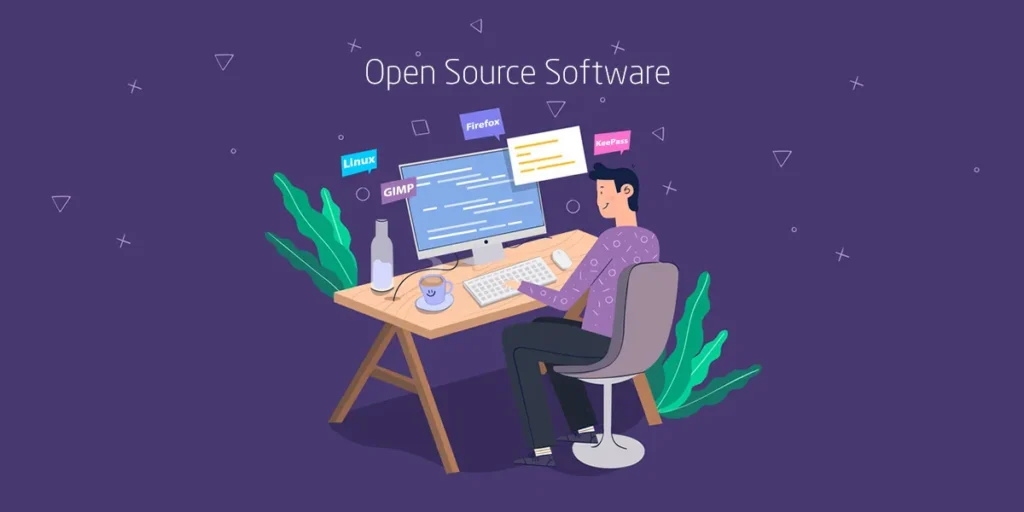
Open source software has become a cornerstone of modern development, and its influence continues to expand. A recent analysis by Harvard Business School in 2024 highlights this trend, revealing a supply-side valuation of open source software at $4.15 billion, while its demand-side value soars to $8.8 trillion. Such figures illustrate why many businesses find the advantages of utilizing open source software hard to resist. However, the landscape has seen troubling instances where popular open source projects have unexpectedly transitioned to more restrictive licenses, creating challenges for developers who have integrated these projects into their applications. To provide some context, open source licenses generally fall into two main categories: permissive and copyleft, as explained in a blog post by OpenLogic, a division of Perforce. Permissive licenses, like the MIT License and Apache 2.0 License, allow users significant freedom in using, modifying, and sharing the software. In contrast, copyleft licenses mandate that any derivative works must be distributed under the same license as the original, ensuring that the source code remains available under those terms. Examples include licenses from the GNU General Public License (GPL) family and the Mozilla Public License. Recently, there has been notable discussion surrounding the Business Source License (BUSL), as some prominent projects, such as Terraform by HashiCorp, CockroachDB, and MariaDB, have adopted this license. However, it’s important to note that BUSL is not classified as an open source license, and thus does not fit into the aforementioned categories. Originally created by MariaDB, the BUSL stipulates that while the source code must be accessible, approval from the licensor may be required for production use. This trend of developing new licenses to suit business goals isn’t isolated to MariaDB; Redis, Elastic, and MongoDB have also introduced their own licenses. Stefano Maffulli, executive director of the Open Source Initiative (OSI), notes that such changes are often motivated by the desire to “secure the value of the project and deter competition.” For example, Elastic created the Elastic License in response to AWS launching its Amazon Elasticsearch Service, which they felt undermined their efforts. Maffulli emphasized that organizations shifting to more restrictive licenses typically do so after gaining substantial traction and are looking to monetize their projects while preventing others from profiting from their hard work. Building Trust in Open Source Projects “There’s nothing inherently wrong with proprietary and source-available licenses,” Maffulli stated. “The issues arise when organizations make mid-course license changes or manipulate branding to make their restrictive licenses seem like Open Source-approved licenses, causing confusion.” When such changes occur, the open source community often reacts negatively. Developers who have integrated a project based on its original license may find themselves facing new compliance challenges. In some cases, they may even need to seek alternatives if their use cases no longer align with the updated terms. “When a company transitions from an open source license to a restrictive one like BUSL, it’s akin to pulling the rug out from under the user community,” Maffulli remarked. “This unexpected and unfair shift erodes the trust of contributors and users alike.” AB Periasamy, co-CEO of MinIO, an open source object storage solution, advises open source projects to carefully consider the implications of such decisions on their brand, as brand trust is crucial for user relationships. Short-Term Thinking in Monetization Strategies The recent licensing changes by Cockroach Labs prompted YugabyteDB to reaffirm its commitment to open source. Karthik Ranganathan, co-CEO of Yugabyte, expressed empathy for the revenue pressures that led to Cockroach’s shift but criticized it as “short-term thinking” that could hinder long-term growth. Historically, Cockroach Labs moved from an Apache 2.0 license to BUSL in 2019 and then announced the retirement of its free Core offering in favor of an Enterprise version, which would only remain free for companies generating less than $10 million annually. Ranganathan argued that developers and smaller organizations might be reluctant to adopt CockroachDB, knowing that growth could result in new restrictions on their usage of the database. His company’s long-term strategy involves maintaining an open source model to ensure it remains the preferred database choice. He stated, “Why would developers choose a less open option when there are fully open alternatives available?” He further elaborated that the true financial rewards lie not in the database technology itself, but in the applications built on top of it. “It’s better to allow broad adoption and encourage contributions, capturing value later through enterprise offerings that provide support and additional features,” he added. Sustainable Open Source Models MinIO has adopted a sustainable business model by keeping its core project open source while offering an enterprise version that provides additional features. Periasamy explained that the revenue generated from paying customers enhances the value of the open source project rather than detracting from it. Other companies, like Grafana Labs, also follow this approach, offering both free and paid versions of their observability platform, each with distinct features. Similarly, Red Hat provides open source projects along with enterprise support, hosting, and consulting services. “Developing and maintaining software is resource-intensive and requires a dedicated team of engineers. Finding a way to sustain it financially is crucial,” said Periasamy. The Birth of OpenTofu License changes can sometimes catalyze the creation of open forks of projects. For instance, when HashiCorp transitioned Terraform to BUSL, the community rallied to form an open alternative known as OpenTofu. They issued the OpenTF Manifesto, asserting that the licensing shift jeopardized the community and ecosystem built around Terraform over the past nine years. Roni Frantchi, director of engineering at env0 and a founding member of OpenTofu, noted the initial understanding within the community regarding HashiCorp’s need to manage project costs. However, after their appeal to HashiCorp to contribute the project to a foundation went unanswered, the community decided to proceed with a fork, gathering significant support along the way. The manifesto quickly gained traction, amassing over 36,000 stars within days, showcasing the community’s backing for an open source approach. They engaged with the Linux Foundation and CNCF, who were receptive and supportive of […]
